Understand the day
Review starts, finishes and driving time in one place.
Vehicle timesheets for small-business fleets
Know when vehicles started, when they finished and how much time they spent driving. Spytec puts daily and weekly vehicle activity in one report, so you can review the day without chasing down the details.
| Vehicle | Start | End | Total |
|---|---|---|---|
| Van 01 | 7:45 AM | 5:00 PM | 9h 15m |
| Van 02 | 8:00 AM | 4:15 PM | 8h 15m |
| Van 03 | Parked all day | ||
Review starts, finishes and driving time in one place.
Open a vehicle’s day to see the trips and stops behind it.
Export useful detail or have reports delivered on a schedule.
A daily record. A useful weekly view.
See vehicle days side by side, with range totals and days moved. Spot the longer days, compare patterns and choose a day when you need to look closer.
Choose today, yesterday, this week, last week or a custom range. Use Weekdays only when your review should focus on Monday through Friday.
Sample week · Weekdays only
Sample Tuesday · Local time
Left the office. 30-minute drive.
Arrived at the first job. Stopped for 2h 15m.
Next trip starts. More trips and stops follow.
Last recorded arrival of the day.
The detail behind the times
Open a vehicle’s daily timesheet to follow its trips and stops, including arrival and departure times, stop durations, addresses and distance. Open the trips or replay the day on the map for more context.
The total is the span from the first trip start to the last trip end. Driving time is shown separately, so a long day and a long time behind the wheel are easy to tell apart.
Useful context for a better review
Use status tabs and flags to focus your review. See days still in progress, distinguish a parked vehicle from missing reports, and review after-hours activity when your organization’s Business Hours are set.
A missing report does not mean a vehicle was unused. These statuses help you check the context before drawing a conclusion.
Highlights trips outside configured Business Hours.
Shows when a day’s vehicle activity is still ongoing.
The tracker reported, but the vehicle did not move.
The tracker was silent. Check the missing data before reviewing the day.
Vehicle Time Sheets · Sample Tuesday
Van 01 had the longest activity span: 9h 15m, from 7:45 AM to 5:00 PM. Van 02’s span was 8h 15m.
2 hours of driving, covering 84.6 miles.
A question you can ask in plain English
Choose Explore with Scout while reviewing Vehicle Timesheets. Ask about a vehicle’s day, compare activity spans or look more closely at driving time—with the report in view.
Useful records. Less routine admin.
Export the report or set a delivery schedule for your team. Scheduled emails include a zip with daily records and trip-and-stop detail, so you can keep the summary and the supporting activity together.
Choose hours and minutes or decimal hours, including in exports. A weekday-only view can keep weekends out of the grid and totals when that fits your business.
Work with the numbers in your own spreadsheet workflow.
Choose recipients and daily, weekly, monthly or quarterly delivery.
Use Scout when a number needs a closer look.
Choose a format that fits your review.
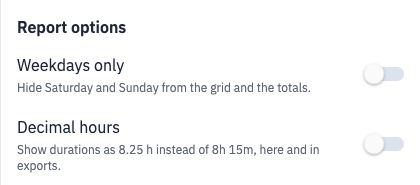
One row per vehicle per day: start, end, total, driving and distance.
The trips and stops behind the day, including addresses.
Vehicle activity, ready to review
Vehicle timesheets organize a vehicle’s trip activity into daily and weekly records. Spytec brings start and end times, elapsed activity spans, driving time, distance, trips and stops together, helping small-business fleets review the workday in one place.
Use a compatible vehicle tracker with trip reporting enabled. Records are organized by vehicle. Use them alongside your team’s assignments and timekeeping.
Useful answers
The daily report shows a vehicle’s start and end times, total activity span, driving time, distance and flags. A weekly or custom-range view puts vehicle days side by side, with a range total and days moved. Open a day for its trips and stops.
Total time is the span between the first trip start and the last trip end for the vehicle’s day. It can include time stopped between trips. Driving time is the time spent driving across the trips, and is shown separately.
Yes. Choose This week, Last week or a custom range to review multiple days. The Weekdays only option hides Saturday and Sunday from the grid and totals.
Yes. Open a vehicle’s daily timesheet to review trip times, stop arrivals and departures, stop durations, distance and addresses. The daily detail also provides Open in Trips and Replay on map actions.
Yes. After-hours flags depend on your organization’s Business Hours settings. If Business Hours are not set, trips are not flagged After hours. Configure those hours to use the flag in your review.
No. No reports means the tracker was silent, so the vehicle may still have been used. Parked all day means the tracker reported but the vehicle did not move. The report keeps those states separate.
Times are shown in each tracker’s operating time zone. Check the displayed time-zone labels when reviewing vehicles operating in different areas.
Yes. The report offers Export CSV, Schedule and Explore with Scout. You can display durations in decimal hours, including exports. Scheduled delivery includes a zip containing daily-record and trip-and-stop-detail CSVs, and covers the days since the last send through yesterday.
These are vehicle activity records built from trips. They do not record employee clock-ins, breaks, pay rules or the identity of the person driving. Use them as supporting context alongside your team’s timekeeping process.
Give your business a clear record of vehicle activity, with the detail and reporting tools to make it useful.

Customer Service
Chat with us 24/7

Fast Shipping
Free 2 Day Delivery on Trackers

Hapn App Access
Included with every paid plan

Secure Payment
Your privacy is our priority